Seating Plan tab
Every guest, right where they belong
A seating chart that takes the diplomacy seriously, so you can enjoy the process.
Place the people you love with intention.
Seating a wedding is one of the most surprisingly involved parts of planning. Families that do not mix well. A couple you forgot about when you set the table size. The aunt who needs to be near the exit. The Seating Plan tab gives you a visual, drag-and-drop workspace to think it all through without spreadsheets or sticky notes.
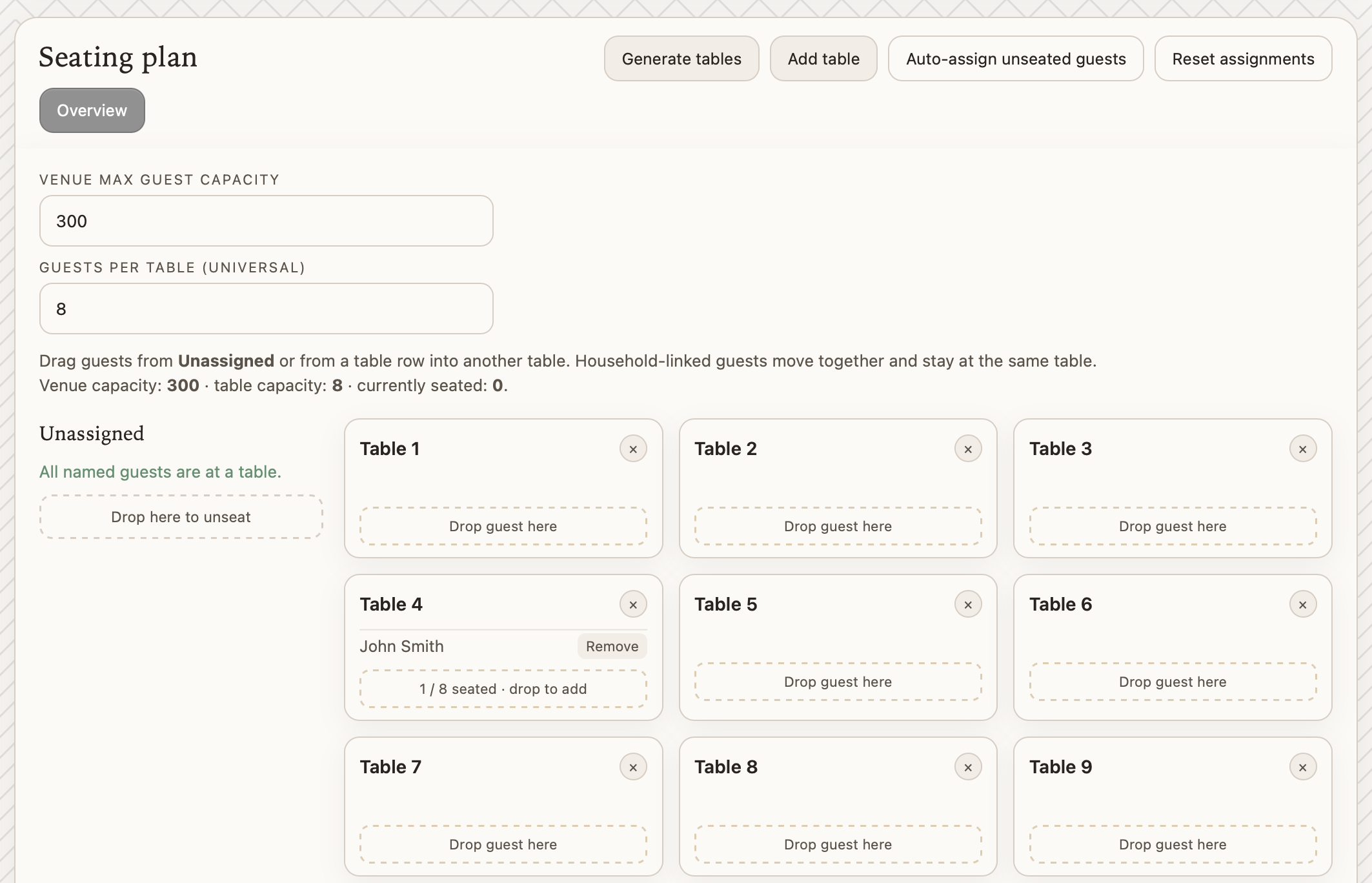
Start by entering your Venue max guest capacity and Guests per table. Hit Generate tables and the planner builds your full table setup instantly. From there, drag guests from the Unassigned column into any table, move them between tables, or drop them back to unseat. Every change reflects live in the table fill count.
Household-linked guests, people you have grouped in your Guests tab, move together automatically. So when you drag a couple to Table 4, their partner comes along. Use Auto-assign unseated guests to fill the room quickly, then come back and polish the placements that need a personal touch.
The full picture at a glance. The table grid shows every table as a card with its current guests and remaining capacity. “All named guests are at a table” turns green when everyone has a seat.
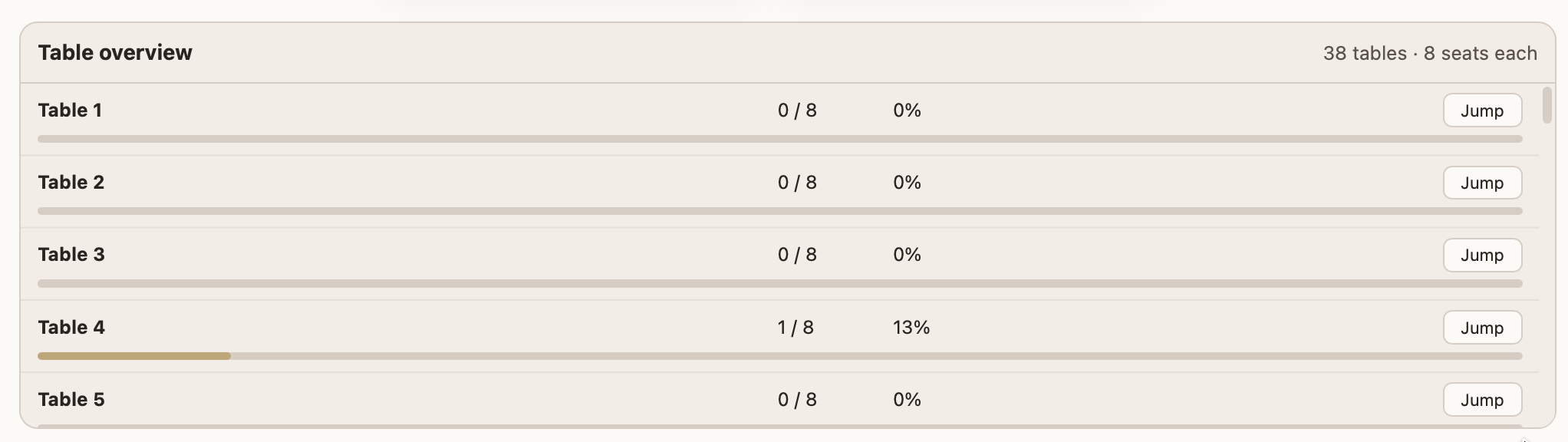
The Table overview panel below the grid lists fill rates with a progress bar for each table, so you can spot a half-empty table and a nearly overflowing one at the same time.
Once the chart is set, table numbers flow back to the Guest list, giving you a single reference with names, meals, dietary notes, and seat assignments in one view.
How it works in practice
The details below show the moments that make this feature genuinely useful once you are in the thick of assigning 120 guests.
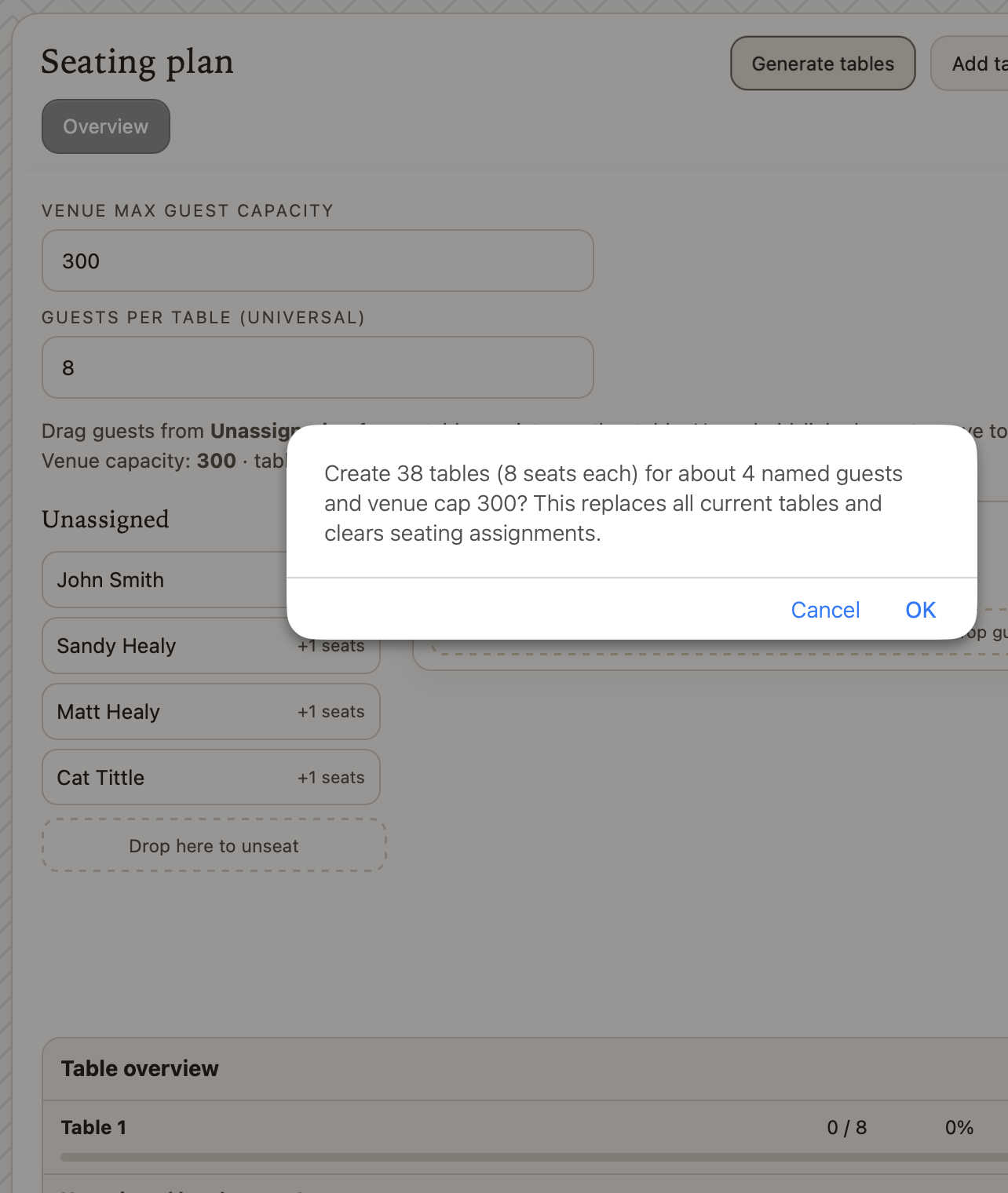
Generate tables
Enter your venue capacity and table size. The planner calculates exactly how many tables you need and creates them in one click. No math required.
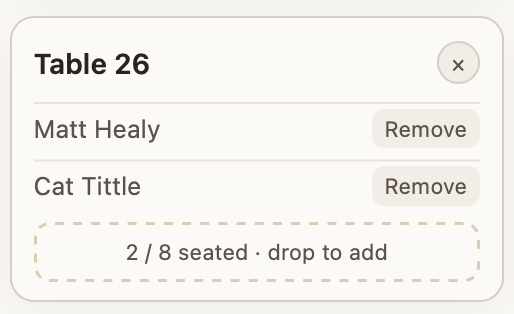
Live fill count
Each table card shows the names seated and a live “2 / 8 seated” count. The drop zone stays visible so you can add more guests at any time.
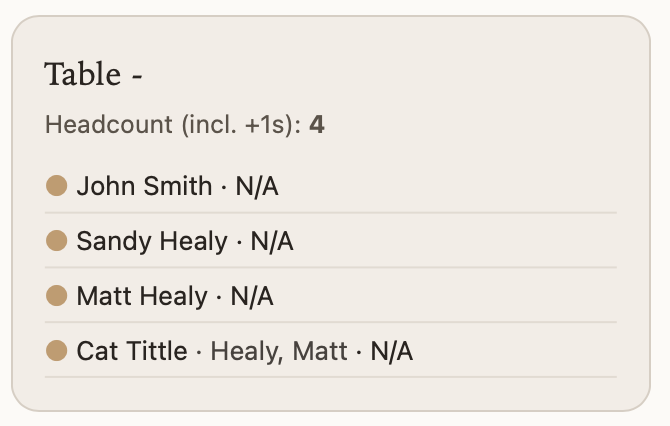
Table summary with headcount
The printable summary groups guests by table with headcount (including +1s), household links, and RSVP color coding. Everything your coordinator needs in one view.
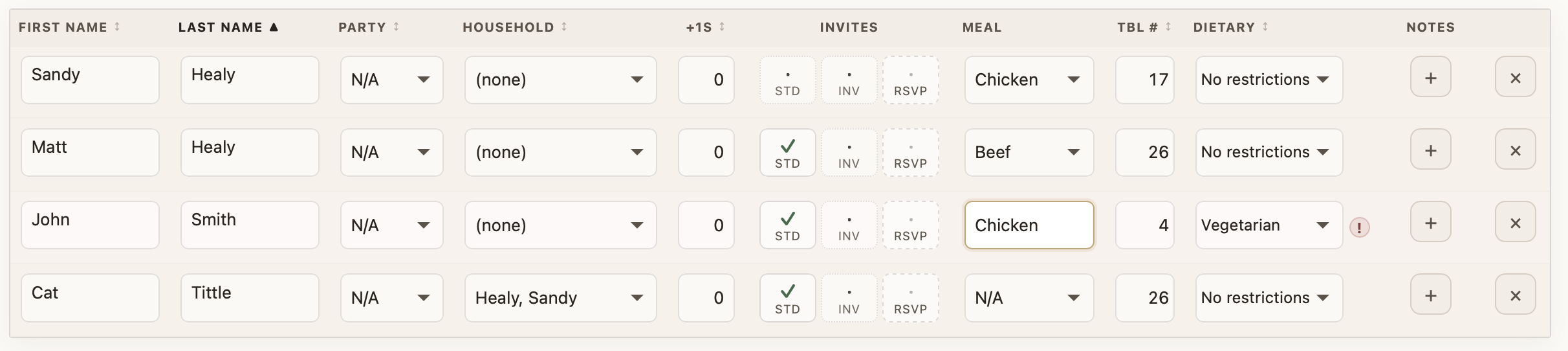
Table numbers in the guest list
Assignments flow back into the Guest tab as a TBL # column. One row per person shows their name, party, meal choice, dietary note, and table number side by side.
Seating plan FAQ
Getting started
- How does the wedding seating chart tool work?
- Set your venue capacity and guests-per-table, then either Generate tables automatically or add them one at a time. Drag guests from the Unassigned column into any table card, or use Auto-assign to place everyone at once and fine-tune from there. Household-linked guests move together so families and couples stay at the same table.
- Can I auto-generate tables based on my venue capacity?
- Yes. Hit Generate tables and the planner calculates how many tables you need from your venue max capacity and guests-per-table setting, then creates them all in one step. You can still add or remove individual tables afterward.
- How do I share the seating chart with my venue or coordinator?
- The Table overview section lists every table with headcount, fill percentage, and guest names including +1 counts. Use the print controls to export a clean summary to share with your venue or day-of coordinator.